 Personal Education
Using the Clone Feature in Inkscape
Inkscape is a FOSS vector graphic program with many features. This demo focuses on the basics of the clone feature.
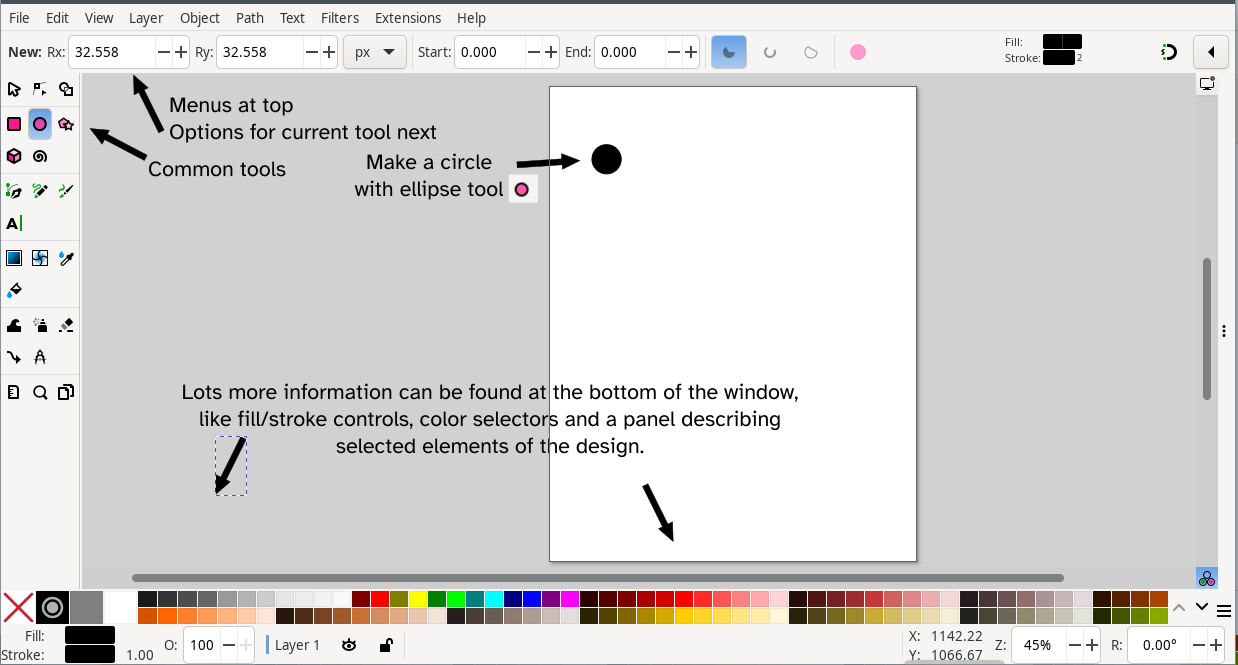
Assuming you have a recent version of Inkscape installed (I'm using 1.4.1 on Linux), start it and create a new document, and make a small circle using the ellipse tool  .
.
Cloning works with more than just circles, but we will start with basics.
Duplicate vs. Clone
A duplicate and a clone sound like they might be the same thing, but they are very different.
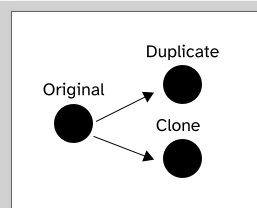
Use Edit > Duplicate to create a second copy. It will be right on top of the original. Move it of to the right.
Now use Edit > Clone > Make Clone to make a clone copy and move it off to the right below the duplicate you did. The color of all of them will be the last color you selected. The default is black. Your setup should be similar to mine. I've added labels.
This next bit is the significant difference between a clone and duplicate.
Use the "Selector Tool"  . Select the original. Change its color. The duplicate stays black. The clone changes to be just like the original with the new color.
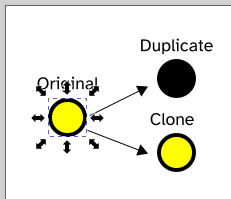
Important: The clone is linked back to the original and changes only when you change the original. Select the clone and try changing the color of it. It will NOT change. All characteristics of the clone are controlled by the original. Experiment with changing the shape of the original to an oval by stretching it sideways, for instance.
Notice, at the bottom of the screen, that Inkscape tells you information about the object you currently have selected. It can help you later when you go back to a design to figure out which objects are clones AND the link to the original.


Duplicating the Clone
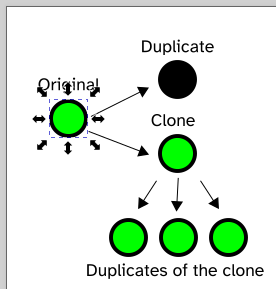
Select the clone. Apply Edit > Duplicate a few times and drag those duplicates of the clone so you can see them.
Change the original's color again. ALL of the clone duplicates change, too!
With some care, you can work within grouped parts of a design to change just the individual elements.
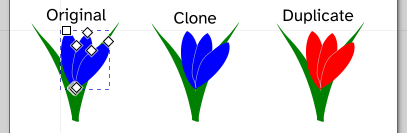
Here I've made a rudimentary (red) flower from some shapes and grouped them together. Using the nodes tool  , I entered the group and selected just the petals within the group to change their color.
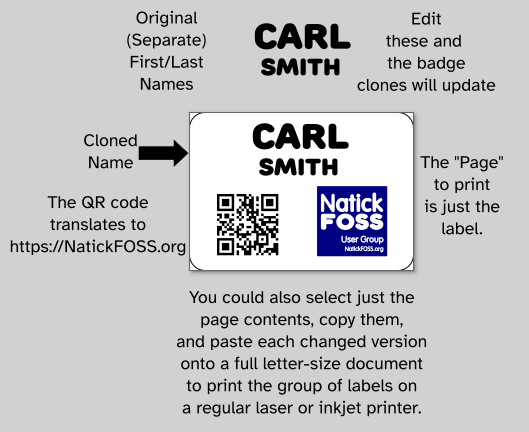
Cloning works with text, too! I've set up a demo page you can download and use for practice using a NatickFOSS name badge.
The Youtube video of the NatickFOSS User Group meeting on January 8, 2026 contains a segment (at 51:45) which covers the concepts described in this document.
Resources to download explore using Inkscape on your computer.
Clone Demo SVG
Label Clone Demo SVG
